Vendor's Guide: What’s the process for uploading products?
Welcome to Office Doc Depot, the ultimate platform for professionals to showcase and sell their digital products with ease. Uploading your work is quick, simple, and absolutely free. Whether you’re a designer, accountant, or consultant, we’ve got the tools you need to reach a global audience. Start uploading today and get your products in front of the right customers, all while keeping full control over your sales. Ready to grow your business? Let’s get started with this Vendor’s guide!
How to Register?
On Office Doc Depot, you can see the menu option “Vendor Registration”.
Once you enter your email, you will receive an email with a verification code. Verify your email address and setup password and your store name.
Congratulations! You have successfully completed the first step for Store setup.
Our Store moderators will approve your account ASAP and then you need to setup your Store
How to Setup Store On Office Doc Depot?
Store Setup
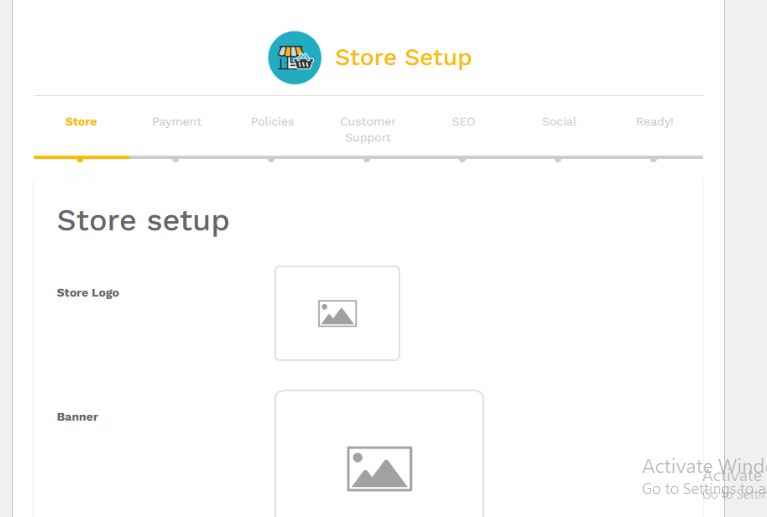
Once your vendor account is approved by Office Doc Depot moderators, you need to login and setup your store. To do so, please click on “Let’s Go” button.
Store Basic Information
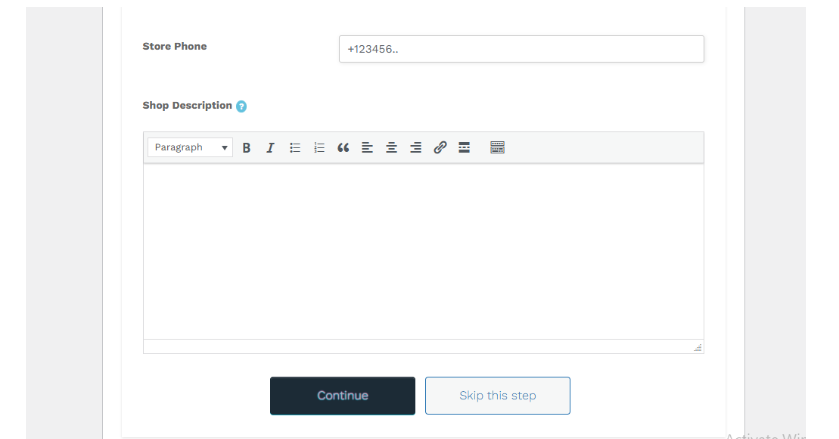
The first step is to add your store logo, banner image, store phone number and short description.
Payment Method
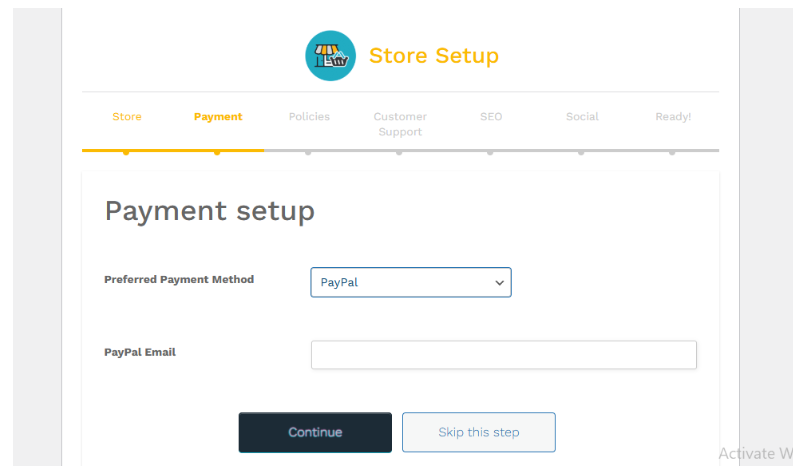
The next step is to select the payment method of your choice. For the time being, we only offer payments through PayPal.
Policies
The next step is “Policies setup”. Please do not fill out this page and press “Continue”, as we deal with digital products only and can not offer any refund or exchange. We do not offer any refunds, and digital products can not be exchanged. Non refund policy is already mentioned on our Terms and Conditions page. Moreover, as we only deal with digital products, there is no need to add anything to the Shipping policies section.
Support Detail
Now you need to add your details, phone no, email and address details.
Store SEO Setup
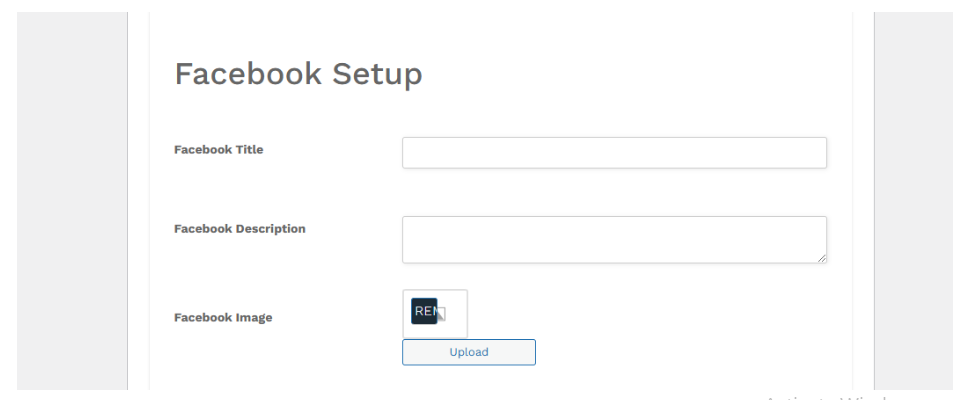
In this section, you get the option to set SEO title, description, and keywords related to your store and add Facebook and twitter account links.
Store Social Setup
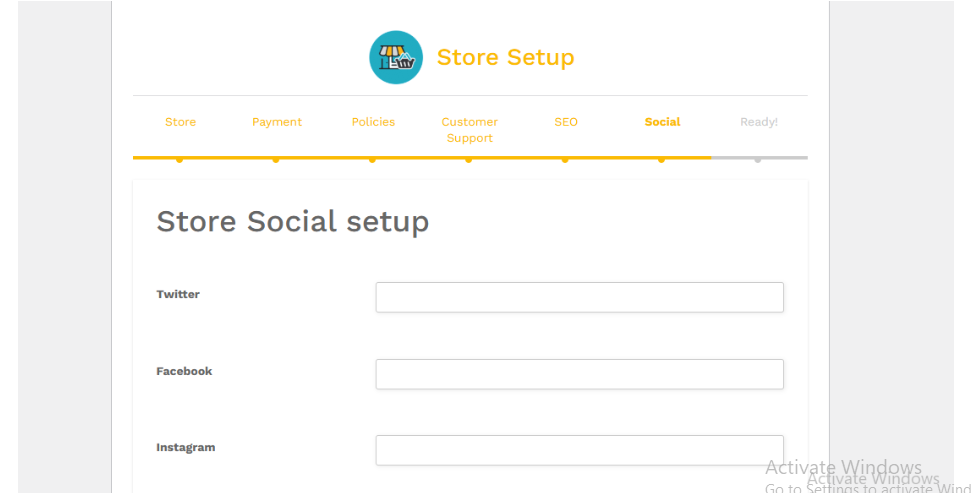
The social setup tab allows you to add links to your social media accounts, i.e., Facebook, Instagram, Linkedin, YouTube, Google Plus, Snapchat and Pinterest.
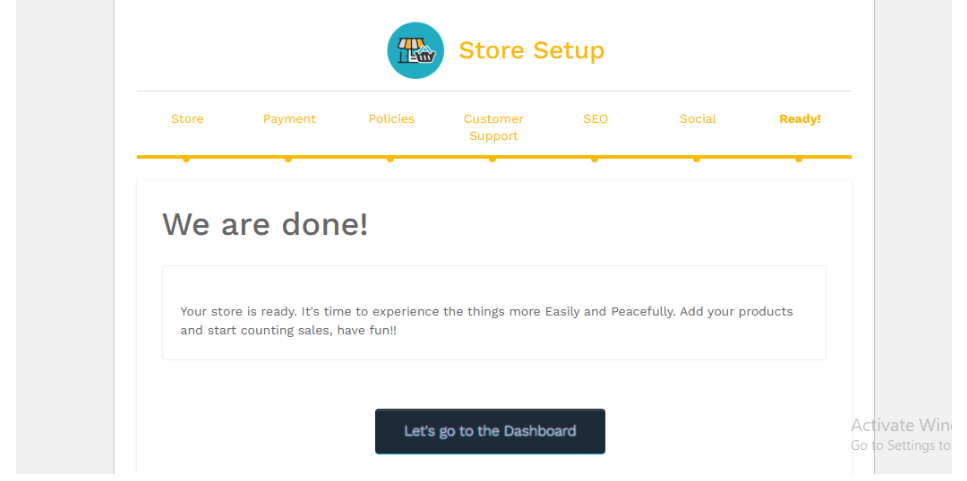
Now your store is ready, Click on “Lets go to the Dashboard” and upload your products on Store Manager.
Introduction to Store Manager Dashboard
Once you are registered on Office Doc Depot, you will login to your account and you will have access to the store manager platform.
In this dashboard, you have all the options you need to upload your product and promote it via content marketing by writing SEO-optimized content around your products, any coupons you want to offer and order records.
Here is brief overview of each tab in store manager dashboard:
Home
The home tab shows you a bird’s eye view of your store. You can witness store analytics, how many products sold, how much the earnings are and what are the hot products in your store.
Media
The media tab keeps track of all the images you have uploaded to your products and articles. You can see and change those images easily using this tab.
Articles
The Article tab provides you with the opportunity to create content around your products. Additionally, the professional content marketing team at Office Doc Depot will support you by developing highly optimized content focused on key topics relevant to your offerings. You can also publish your own articles, including clear calls-to-action (CTAs) that link directly to your products, maximizing visibility and engagement.
Product
The product tab allows you to upload and publish your digital products on Office Doc Depot. Additionally, you can apply filters to examine your digital products.
Order
The order tab shows all the orders you have about your products that you have uploaded on your products. You can see the details like date, earnings and billing information.
Coupons
Yes, Office Doc Depot helps you promote your products in many ways. You can generate coupons and advertise them as you wish. The coupons menu allows you to set coupons, percentage discounts, and coupon expiration dates.
Refund
The refund menu allows you to handle refunds in a sophisticated way. If a customer requests a refund, you will receive the request directly. If you find the reason valid, you have the option to process the refund for the customer. However, if the request appears to be fraudulent or unjustified, you are within your rights to reject it, as long as you are certain. We fully support our vendors in standing against any form of misconduct or wrongful claims.
Settings
The settings tab allows you to set the store outlook, withdrawal and every other menu that you may encounter while working on Office Doc Depot.
Withdrawal
The withdrawal tab allows you to keep track of your withdrawal from the Office Doc Depot store. Additionally, you can keep a record of all withdrawal requests that have been made in the past.
Reports
The report tab shows the essence of your store’s performance. You can see details of products sold, revenue generated and coupons etc.
Reviews
The reviews tab keeps a record of all the reviews on your products. You can check the customers’ feedback and address them.
How to Upload Products?
To upload the product, go to the “Product tab” and click on “Add New”.
You will see the menu to add your product name, description and images.
You have access to many listing optimization options to improve your product display on the website. You can add images, walkthrough video and tutorials around the product.
You can upload your product through “Downloadable”. Once the user pays for your product, he will receive the downloadable link to your product.
And voilà! Your product is live in your store. Now, sit back, relax, and watch the earnings roll in!
Important: Please note that all products will undergo a thorough review by the highly experienced professionals at Office Doc Depot to ensure product quality and user satisfaction. Your product will only go live after receiving approval. You will be notified of the outcome in either case. If any revisions are needed, you can always update your product and set it for sale again.
Bulk Product Upload Process
In addition to uploading your products one by one, Office Doc Depot provides a state-of-the-art solution for uploading the products in bulk. Here is how you can do this:
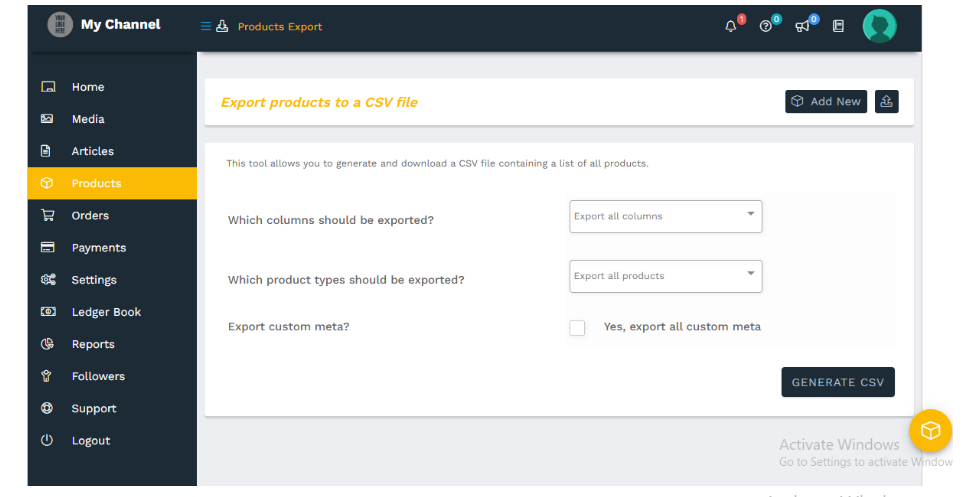
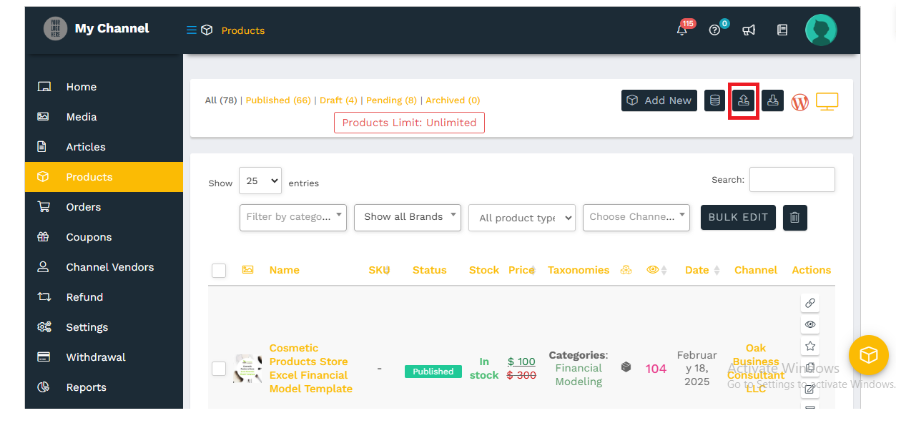
On the Product menu, please click on the “Export Product” option as shown in the image.
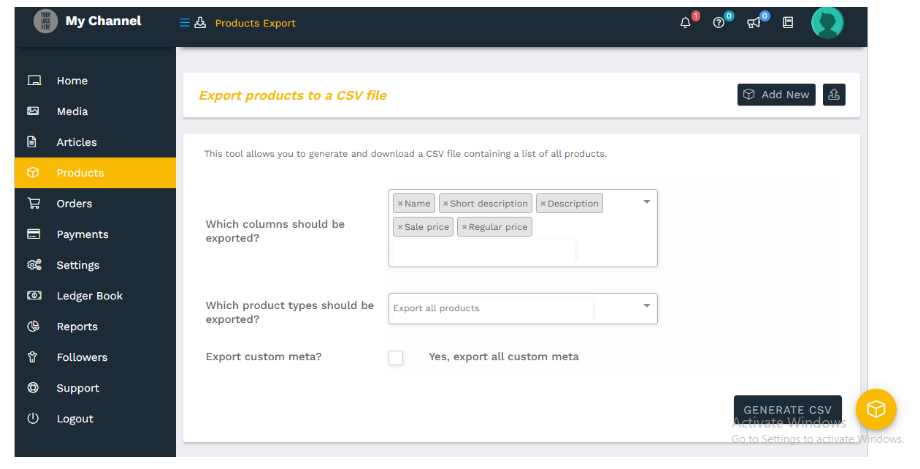
The option will take you to the section that allows you to pick up the columns that you need for product upload. The interface of the export section is as follows:
You just need to select these columns from the column list:
Name
Short Description
Description
Regular Price
Sale Price
And then click on the “Generate CSV” button.
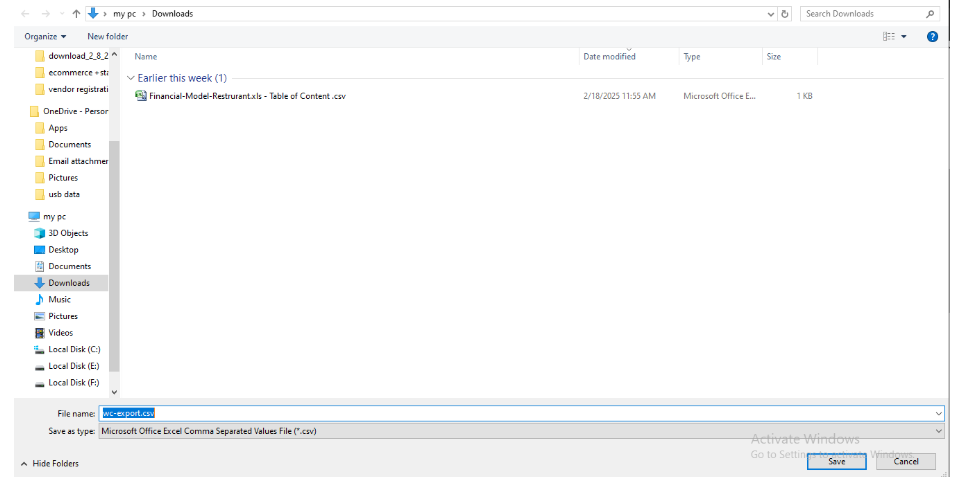
Once you click on “Generate CSV”, you will get the wizard to save the file on your system.
The file you downloaded will look like this:
Now you can add these details and import the file on your Office Doc Depot store manager and your new products will be added to the system. Below are the details of how you can do so.
Adding Product
Once you fill the CSV file with the required details, click on “Import Product”, as shown in the image.
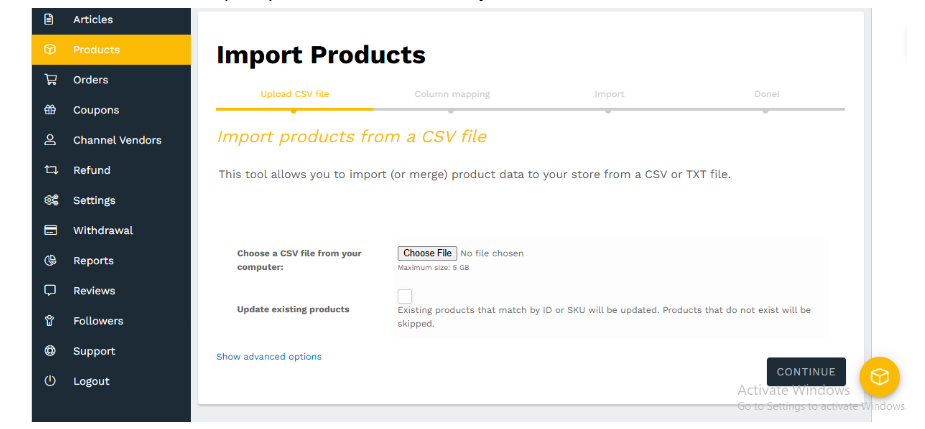
You will be taken to the Import product menu, select your file and click on the “Continue” button.
The next interface enables you to map columns seamlessly. Office Doc Depot’s advanced technology automatically maps them for you. Simply review the mappings and press “Continue” to proceed.
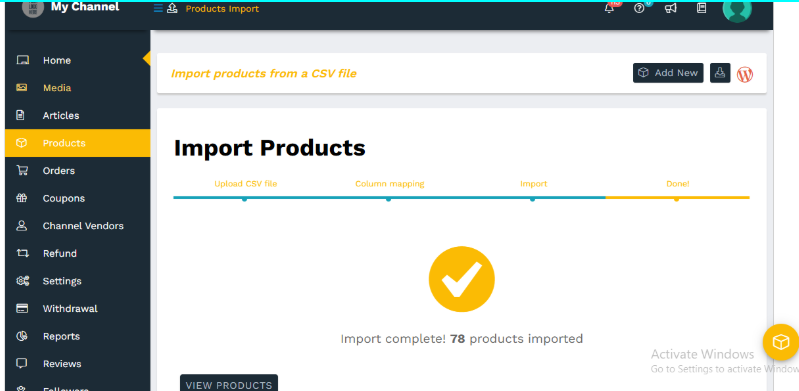
You can see on the screen that your products are being imported.
Once your products are uploaded, the system will notify you that your products are added to your store.
Once your products are added, you can edit them to add images and upload the product file. In this way, the Office Doc Depot bulk upload option allows you to add multiple products to your store in a jiff.
Note:
If you have products already uploaded on your store, while exporting products, those product details would be exported too. You need to remove those files from your CSV file as the addition of those products would cause duplication.
Office Doc Depot is designed to be highly intuitive and user-friendly. However, if you encounter any confusion or need assistance, we are here to help.Please feel free to reach out to us at any of the following email addresses: