
Dynamic Performance Review Excel Template
$ 49
This Performance Review Excel Dashboard Template helps you organize employee evaluations and analyze performance in a clear and structured way.
This Dynamic Performance Review Excel Dashboard Template helps you organize employee evaluations and analyze performance in a clear and structured way. Follow the simple steps below to set up the template, enter your data, and review employee performance efficiently.
Step 1: Enable Macros and Read the Instructions
When you open the template, click on the “Enable Macros” button in the window that appears.
After enabling macros, go to the first tab and carefully read the instructions provided.
Step 2: Input the Data
Start entering the required information in the template.
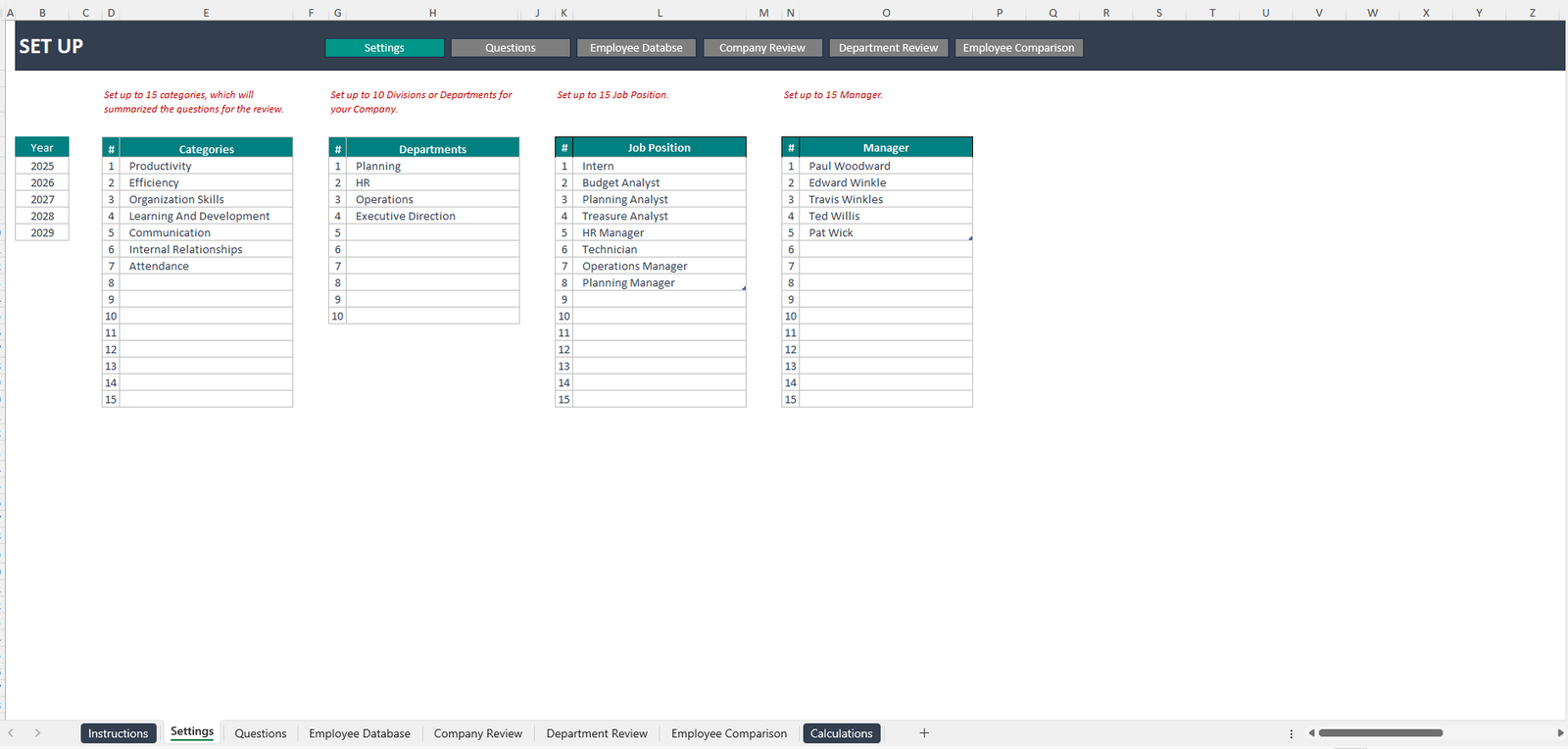
Settings
In this tab, you will add categories, department managers, and other reference data.
This information will later be used in the following sheets as dropdown selections for your convenience.
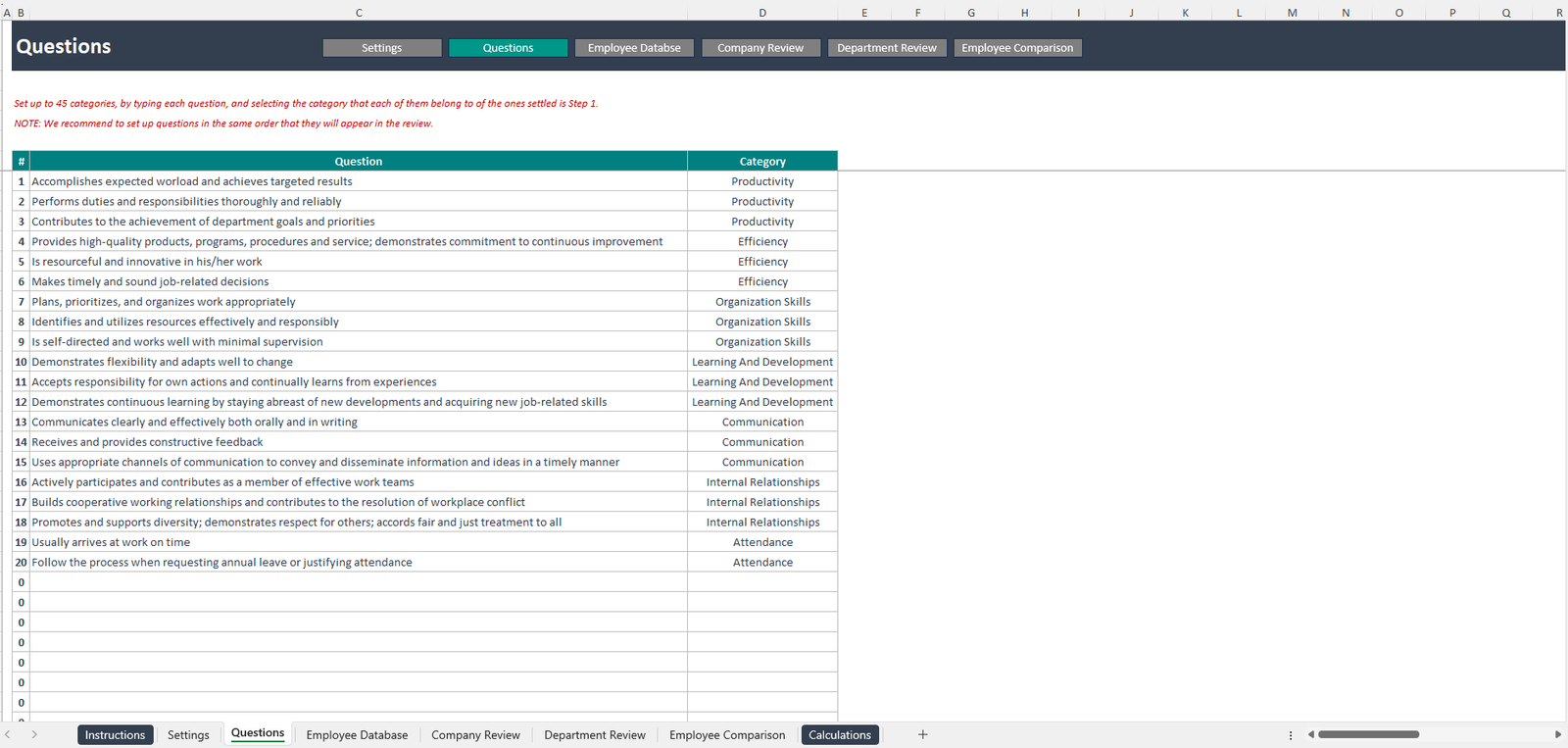
Questions
In this section, indicate the categories you wish to evaluate, such as productivity, communication skills, and efficiency.
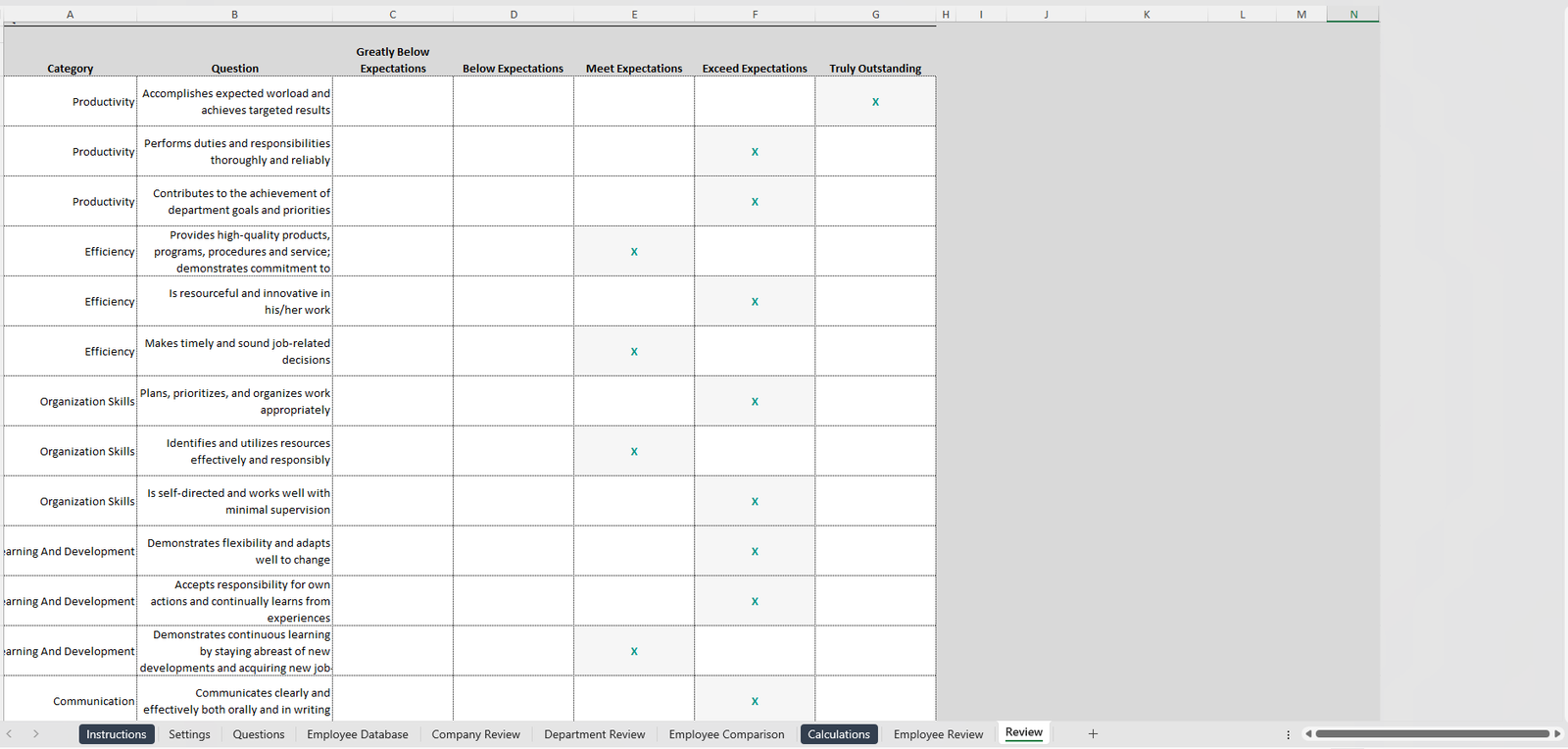
You will also write the questions that will be used to evaluate each employee.
Finally, create a list of all departments or divisions in the company.
Step 3: Upload Employee Information
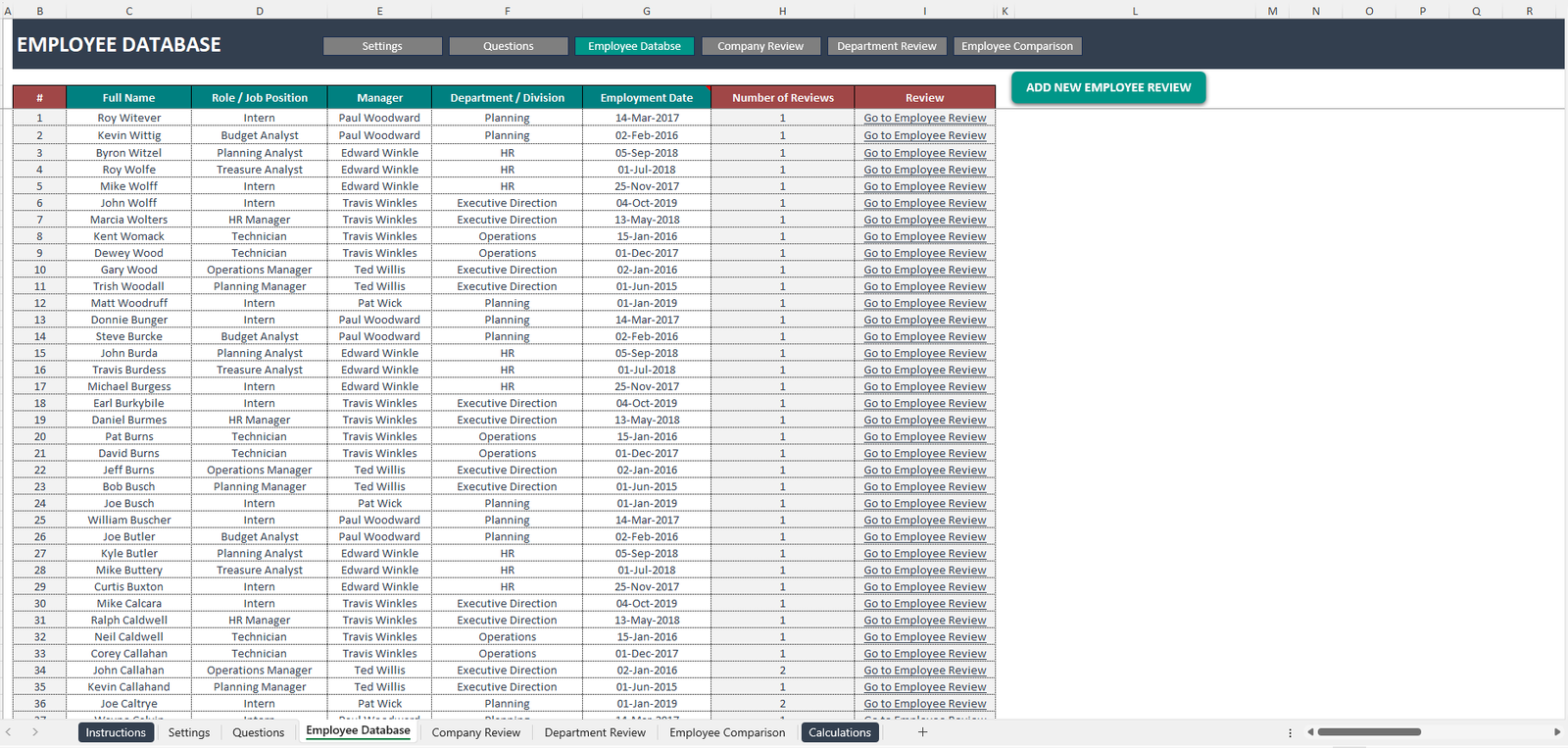
Once everything is prepared, go to the “Employees Database” tab and enter the details of each employee, including:
Step 4: Perform an Employee Review
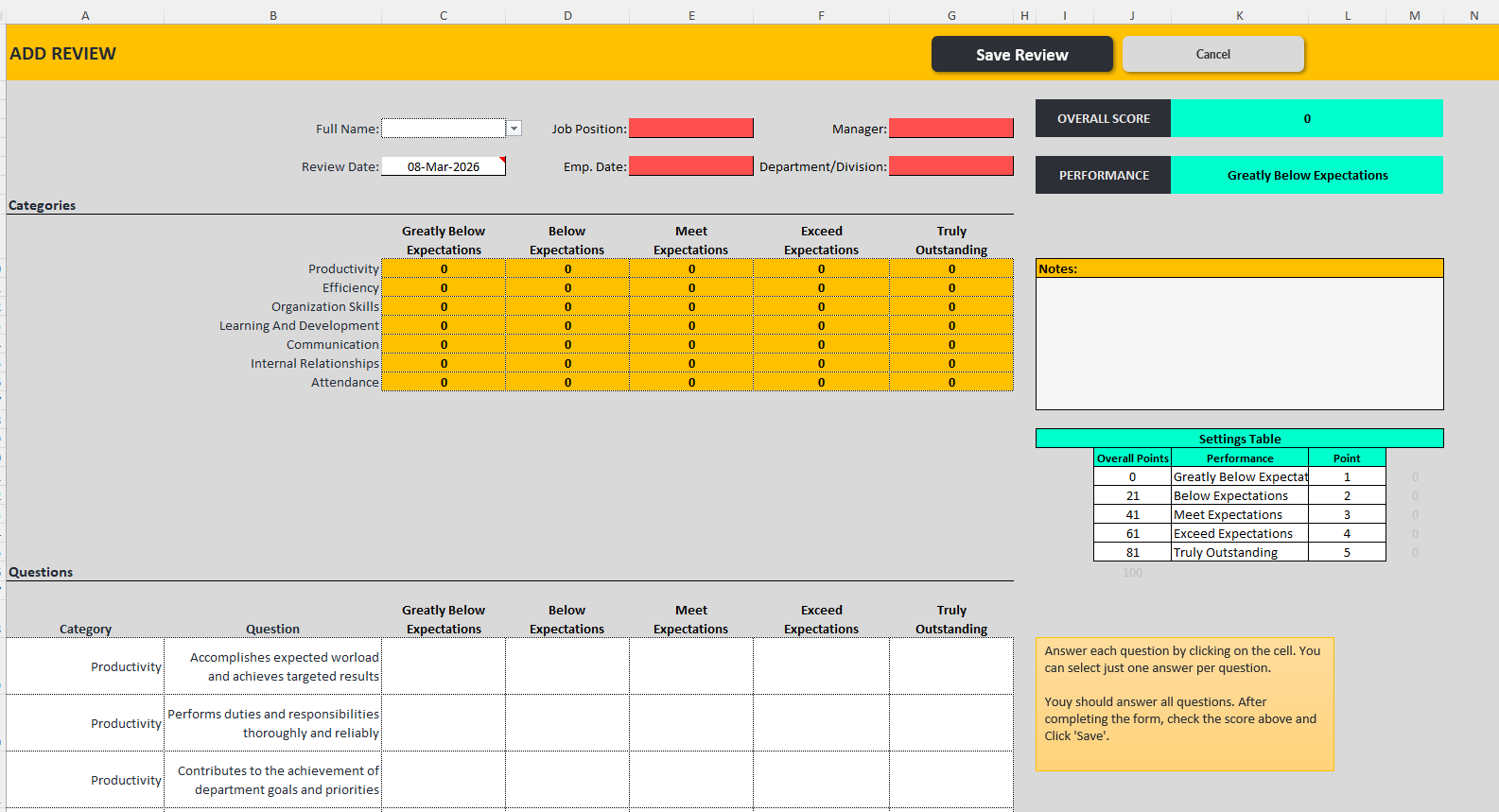
In the “Employees” tab, you will find an “Add Review” button in the top right corner of the template.
Click on this button to start measuring employee performance.
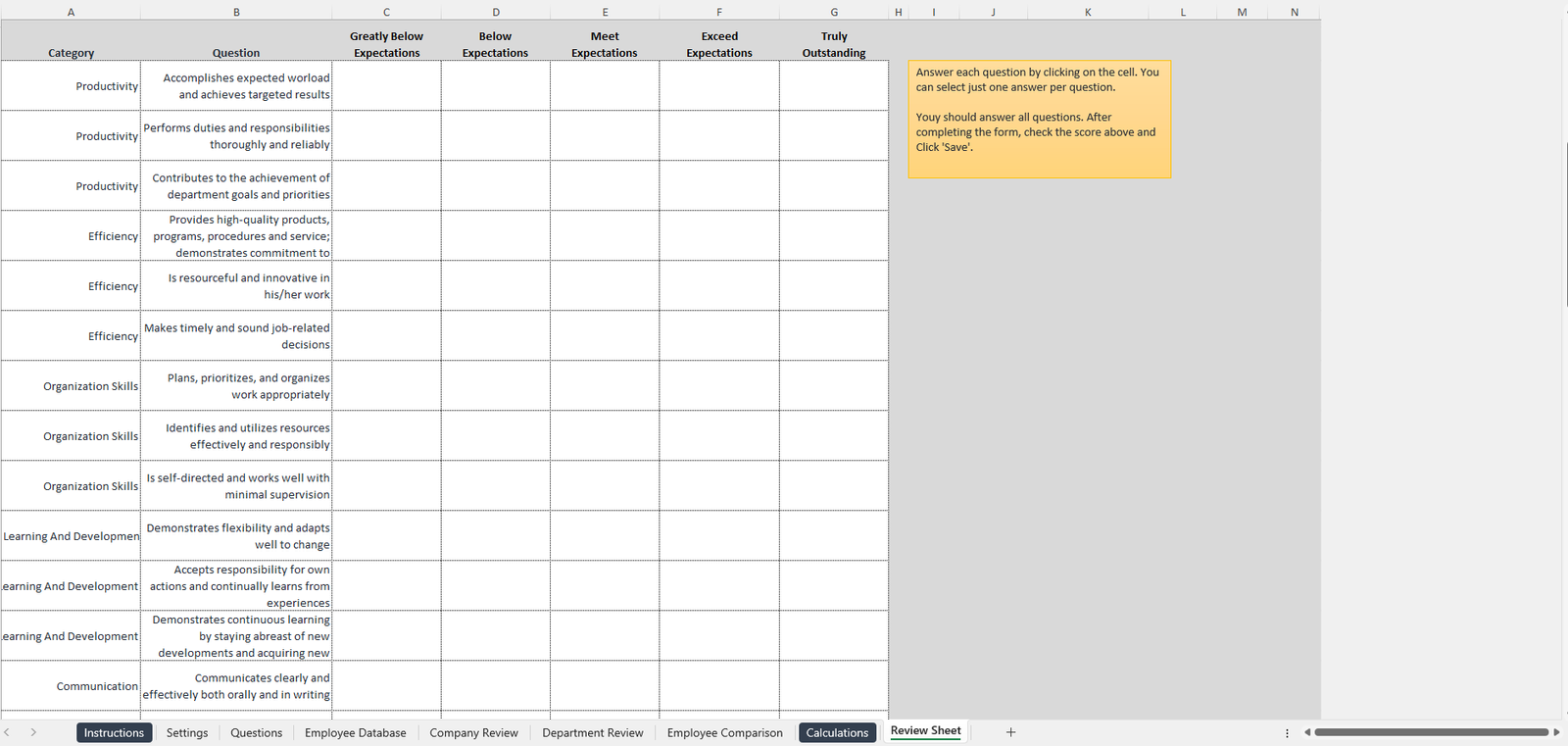
A new tab will automatically open where you can enter the information for the employee being reviewed.
Start by selecting the employee’s name from the drop-down list.
Then go to the Questions section and select the score you want to assign for each evaluation criterion.
Step 5: Check the Results and Save
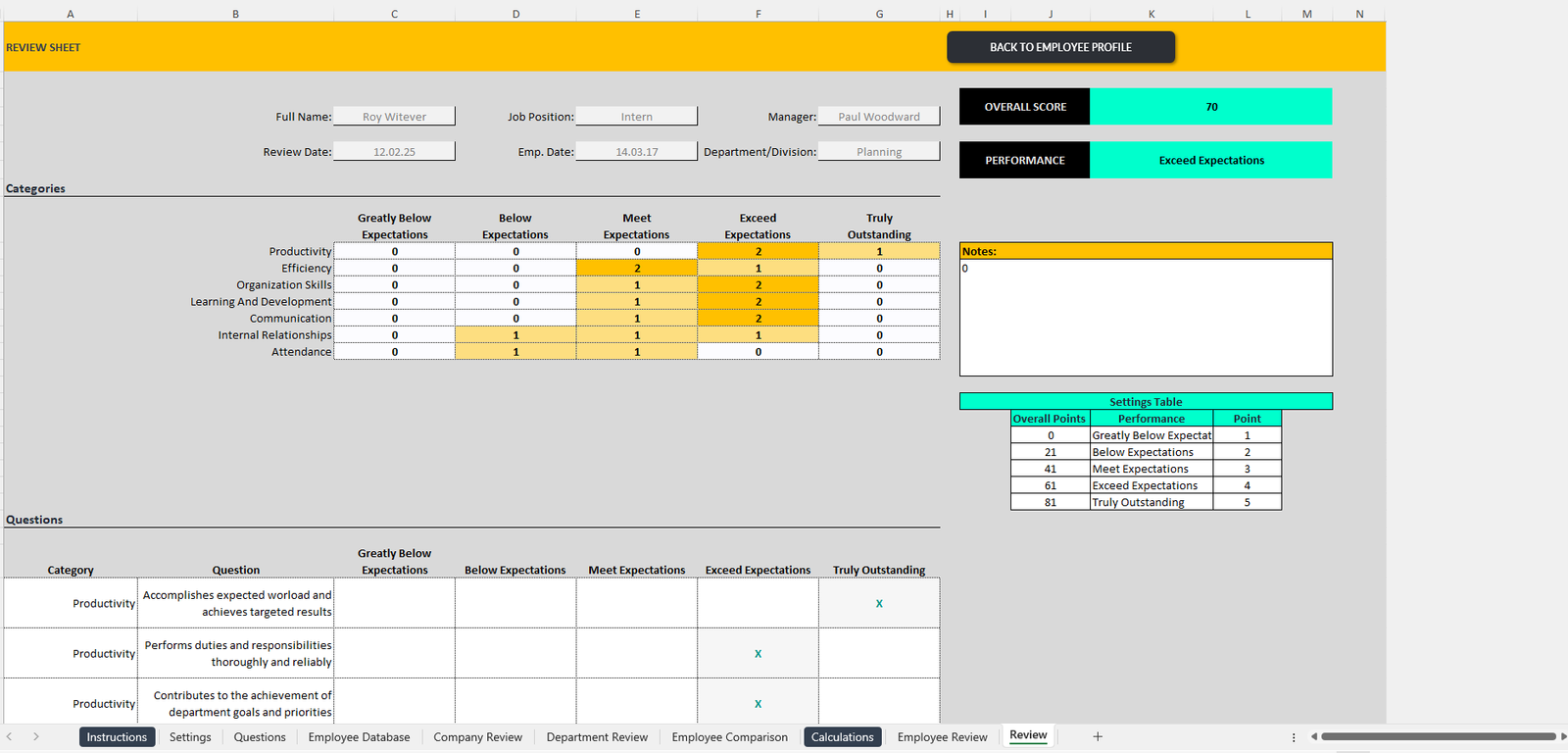
On the right-hand side, you will see a results summary displaying the employee’s scores and performance.
To complete the review, simply click the “Save” button in the top right corner of the screen.
Step 6: Check Each Employee Profile
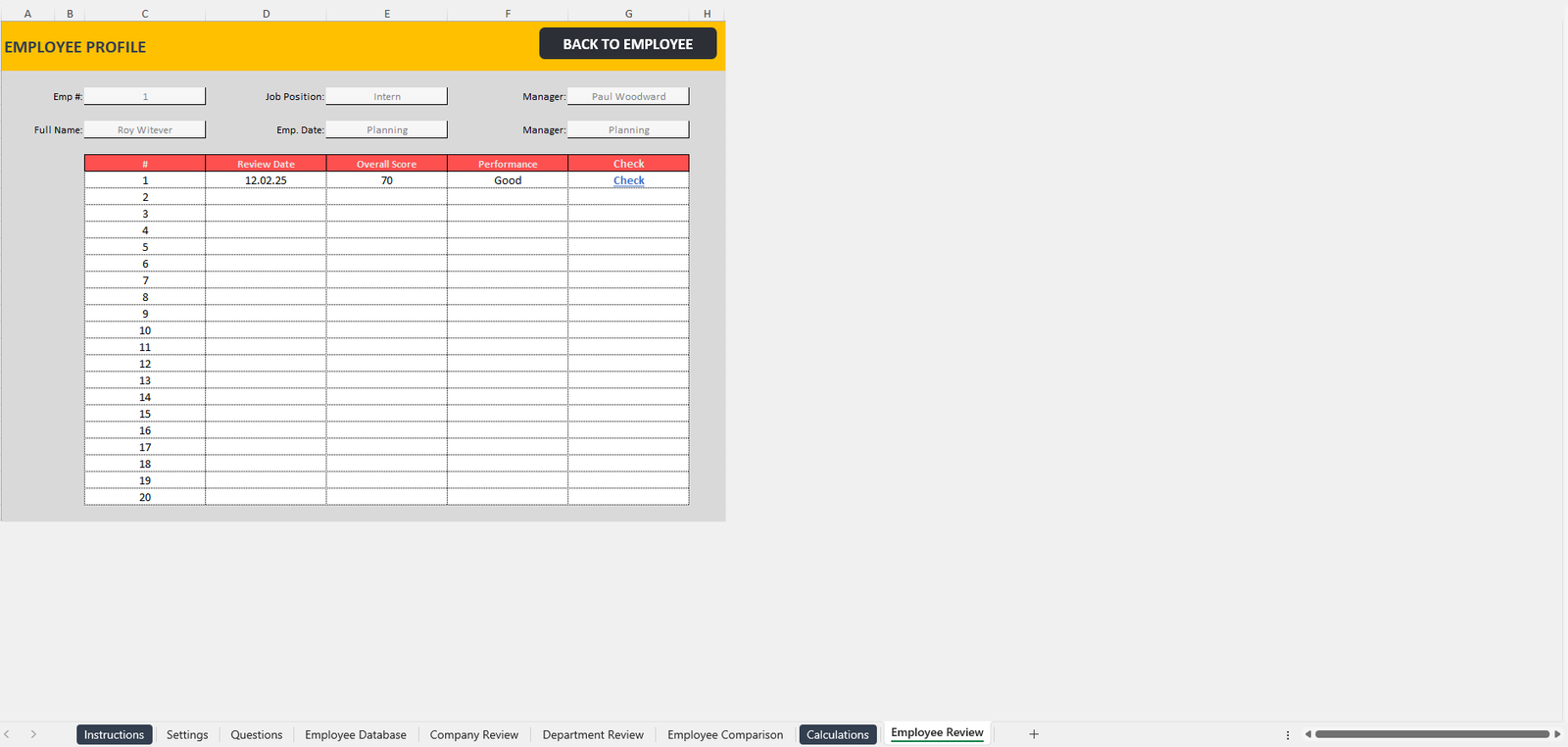
If you want to see how an employee has developed over time, click on “Employee Profile” within the “Employees Database” tab.
The employee’s record will open automatically, allowing you to view information about each review carried out.
Step 7: Analyze the General HR Report
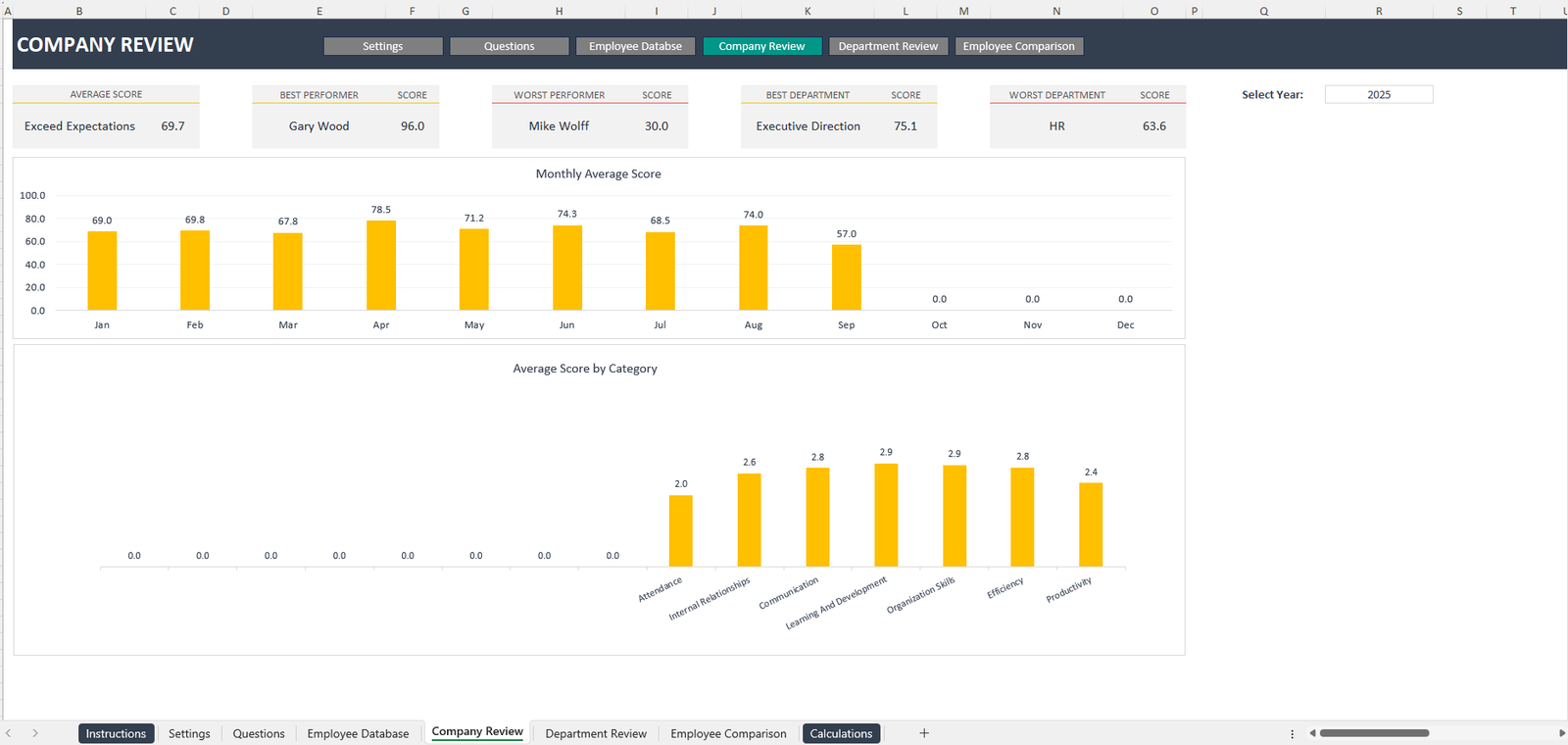
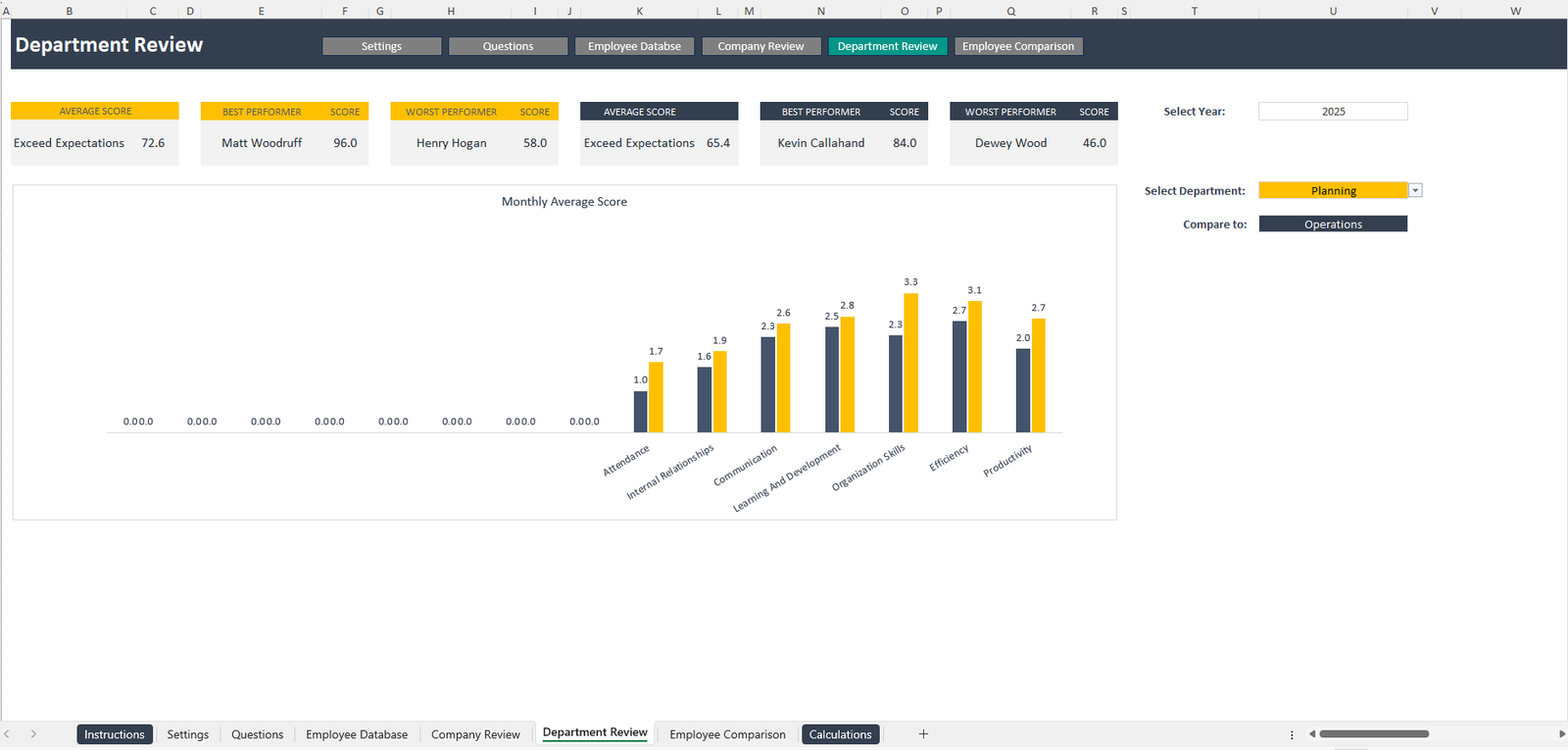
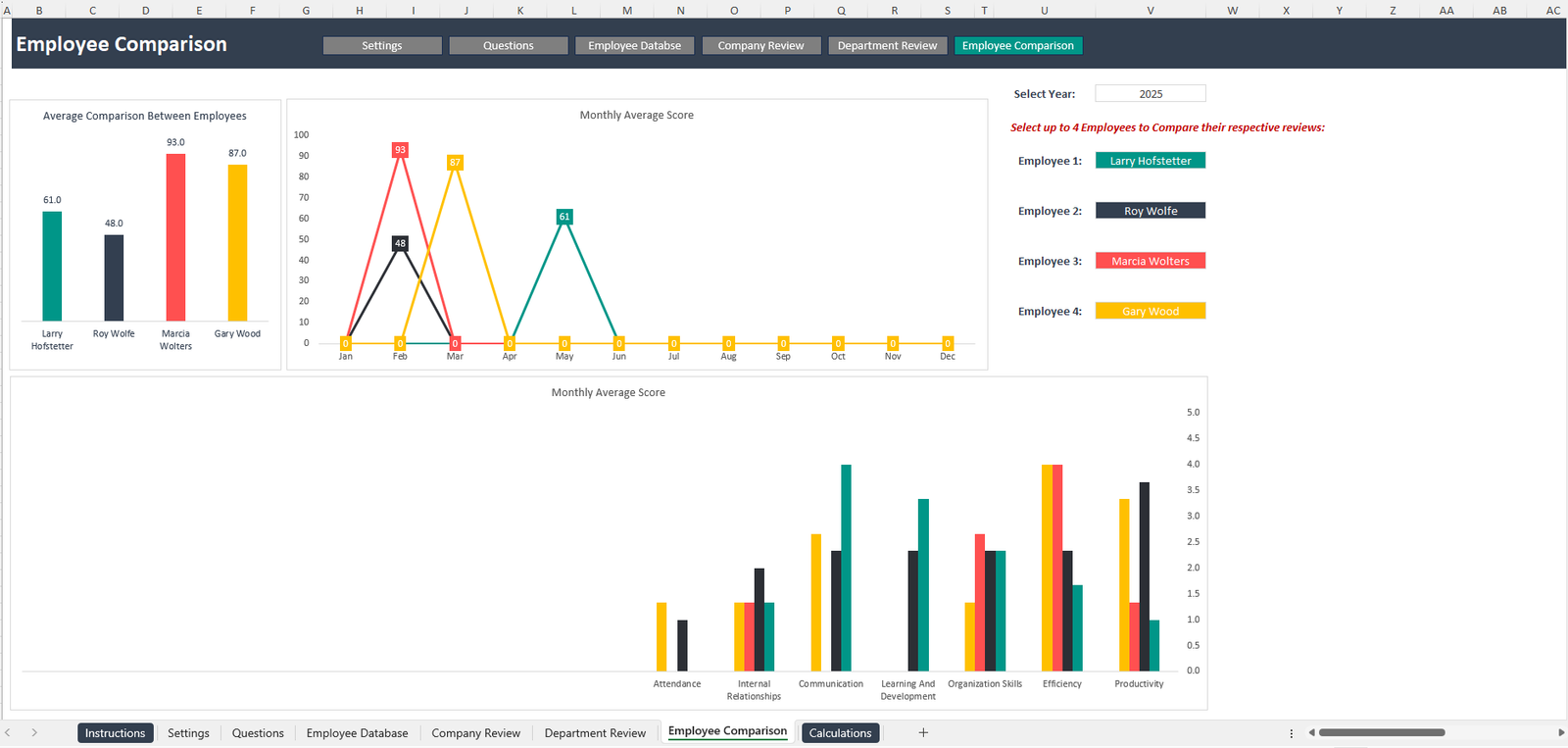
This template includes three interactive dashboards that present different views of your staff data for a specific year.
You can analyze the information:
Company-wise
Department-wise
Employee-wise
This makes the template more efficient and easier to use when reviewing performance data.
General Inquiries
There are no inquiries yet.


Reviews
There are no reviews yet.